
We’re big fans of the Wander app on Meta Quest. We regularly use it for virtual travel, exploring different places around the world, and even checking out streets and neighbourhoods before visiting them in real life.
However, yesterday, we had a frustrating experience when we tried to use Wander, only to find that the app kept crashing.
Imagine opening your favourite virtual travel app, only to be sent straight back to the Meta Quest home environment a few seconds later!
Let us share what happened, what we tried, and how we eventually got Wander working again.
Table of Contents
What Happened? Wander Kept Closing on Its Own
When we went to our Meta Quest library and selected Open on the Wander app, it launched normally at first.

However, after just a few seconds, before it could even display its actual content, such as the location and map, the app suddenly closed and returned us to the Quest home environment.

We tried opening it again, but the same thing happened.
Our first thought was that perhaps we hadn’t updated the Wander app. So, we checked for an available update and installed it.
Unfortunately, the problem remained.
Then we thought, maybe our Meta Quest 3 headset’s software was outdated. We went ahead and installed the available system update (which is v2.9), restarted the headset, and tried launching Wander again.
Still no luck!
At this point, we were getting pretty frustrated because we really wanted to use the app to explore Jakarta, Indonesia, before our actual trip.
How We Fixed the Wander App Crashing Issue
After trying the updates without success, we decided to try something else.
Here’s what we did:
- First, we went to our Meta Quest Library. Open it.
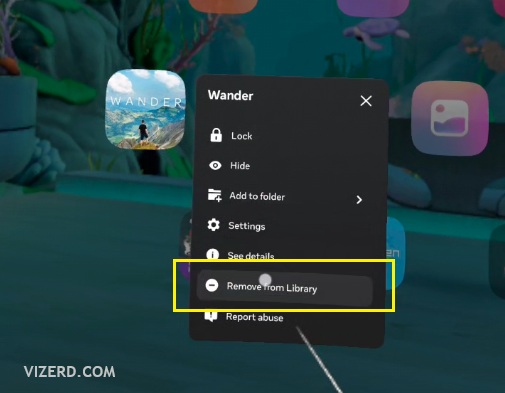
- Then, we point to the Wander app. Next, we press the trigger at the right Touch Plus Controller and release it. App menu will appear. Select “Remove from Library“
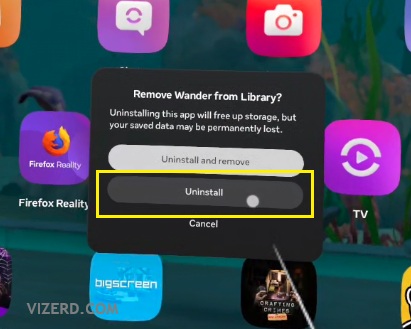
- A pop-up message will appear asking us to confirm the uninstallation. We selected Uninstall, understanding that some saved data or settings might be lost in the process, and decided to proceed.
- Once the uninstallation was complete, we restarted our Meta Quest headset.
- After restarting the headset, we went back to our Library. Since we didn’t select “Uninstall and remove” option, the Wander app icon was still there, allowing us to reinstall it directly.
- Next, we selected the Wander app icon and proceed to reinstall it.
- Once the installation was completed, we try to open the Wander app as usual.

And voilà!
Wander was working normally again!
We were so relieved. We could finally explore virtual destinations again without being interrupted by the app crashing.
Final Thoughts
To be honest, we still don’t know exactly why the steps above fixed the problem.
Perhaps reinstalling the app helped resolve an issue with its installation or app data, but that’s just our guess. It’s still a bit of a mystery to us!
If you’re experiencing the same issue where Wander opens for a few seconds and then suddenly closes, you might want to try the steps we shared above.
However, we can’t guarantee that this workaround will work for everyone or continue to work if the same problem happens again in the future.
At least, it got Wander working again on our Meta Quest headset when we encountered the issue.
If you found this article helpful, feel free to share it with other Meta Quest users who might be experiencing the same problem.
Looking for more Meta Quest guides and tutorials? Check out our Meta Quest Tutorials page for more helpful guides.
About The Author
